
Last verified: August 3, 2026
TradingView Paper Trading is a simulated trading account built into the TradingView charting interface. It lets you practise placing orders, managing positions, and reviewing results without depositing or risking real money. It is useful for learning the platform and testing a repeatable process, but simulated results should never be treated as evidence that the same strategy will perform equally well in live markets.
Important: Paper Trading uses virtual funds. It cannot reproduce every live-market condition, broker charge, tax, liquidity constraint, price difference, or emotional decision. Nothing in this guide is a recommendation to trade a particular market.
What Is TradingView Paper Trading?
Paper Trading is TradingView’s built-in trading simulator. According to TradingView, it is available to registered users and requires no deposit or broker account. The simulated account supports market, limit, and stop orders, and the trading panel tracks open orders, positions, account history, an account summary, and a trading journal.
The simulator is different from a broker demo account. Paper Trading is managed by TradingView, while a demo account is supplied by a specific broker and may more closely reflect that broker’s symbols, spreads, platform rules, and order settings. Both are educational tools, and neither guarantees live results.
| Tool | Best used for | Main limitation |
|---|---|---|
| TradingView Paper Trading | Learning chart-based order placement and testing a process in TradingView. | It is a general simulation rather than a specific broker’s execution environment. |
| Broker demo account | Learning a broker’s platform, instruments, and account workflow. | Demo conditions can still differ from a funded live account. |
| Live account | Real execution with actual money. | Capital is at risk and mistakes have financial consequences. |
How to Connect TradingView Paper Trading
- Sign in to TradingView and open Supercharts.
- Open the trading controls from the chart. Depending on the current interface, this may appear as Trade or the Trading Panel.
- Find Paper Trading in the available connections.
- Select Connect.
- Confirm that the connected account is the simulated Paper Trading account before placing an order.
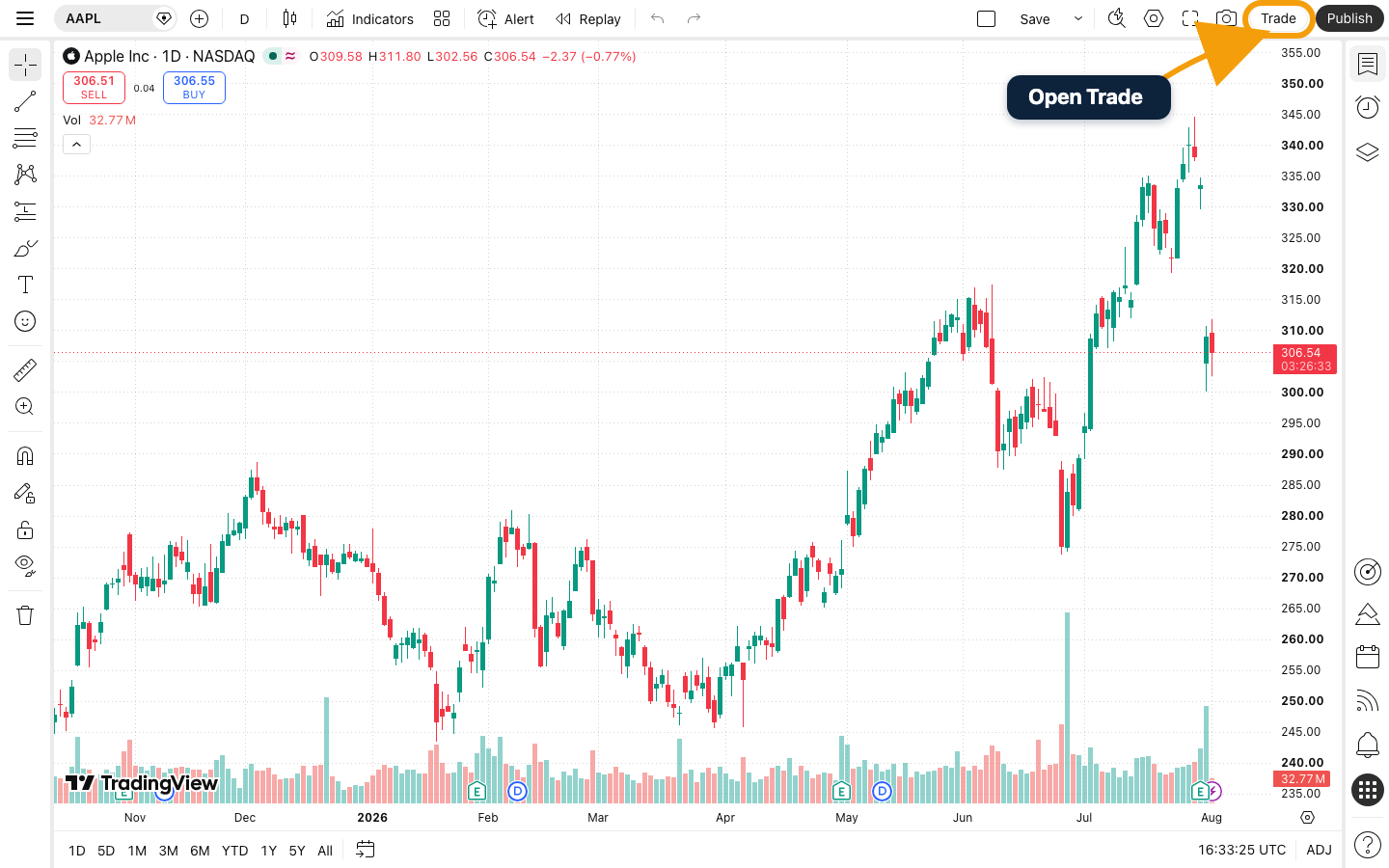
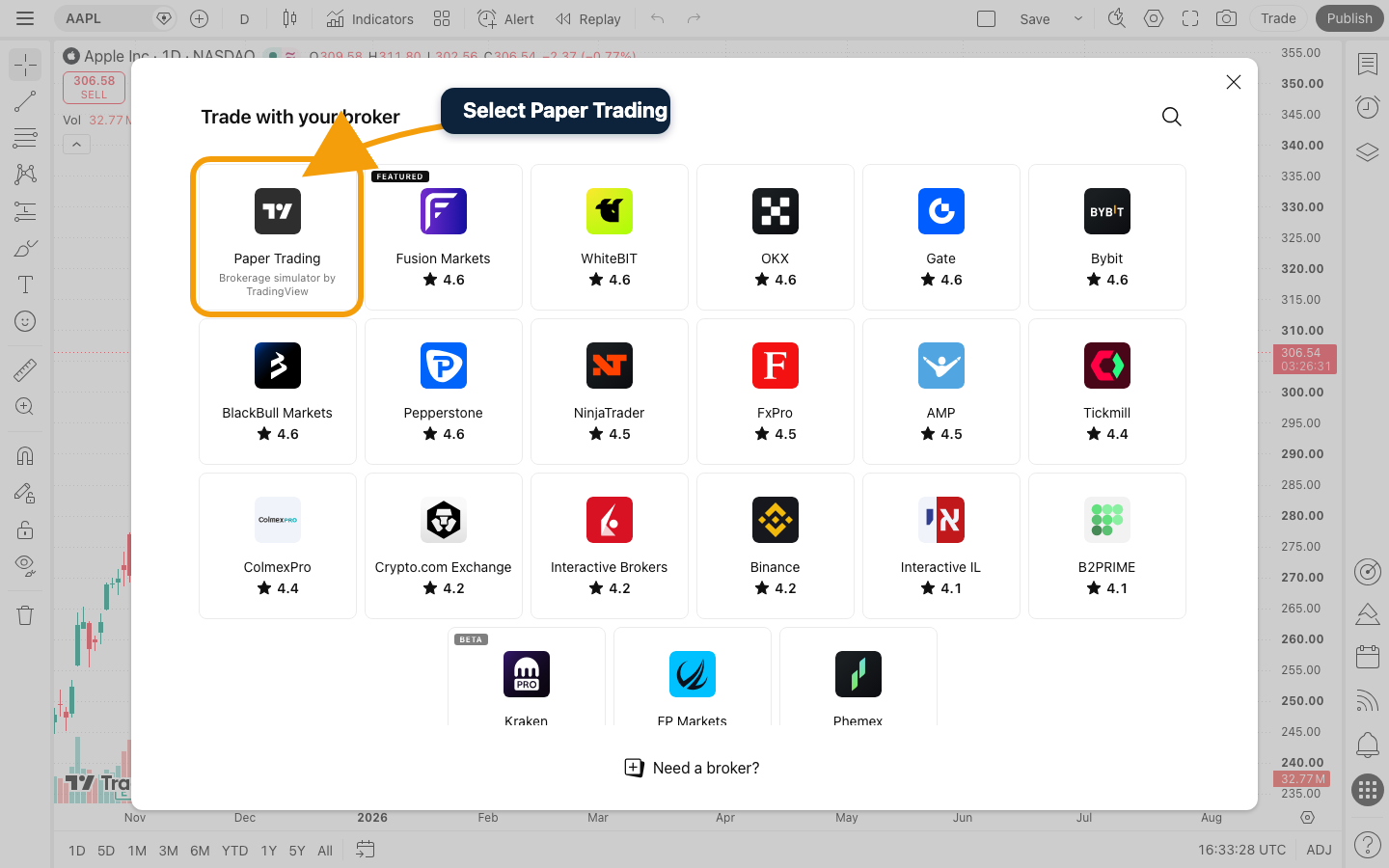
Do not select a live broker when you intend to practise. Confirm that the Paper Trading simulator is selected before placing an order.
The account starts with simulated funds. TradingView’s documentation states that the account currency, balance, leverage, and commission settings can be adjusted through the Paper Trading account settings. Check those settings before comparing results, because unrealistic leverage or zero commissions can make a test look much better than a real workflow.
How to Place Your First Simulated Order
Choose a symbol and open an order ticket from the chart or trading panel. The exact controls can vary by device and interface version, but the order decision should always include the same checks:
- Symbol: verify the exchange, data source, and instrument type.
- Direction: choose buy or sell only after confirming what the button will do.
- Order type: market orders seek immediate execution; limit and stop orders wait for defined price conditions.
- Quantity: enter a position size that matches the practice rule you are testing.
- Risk controls: add stop-loss and take-profit settings when they are part of the test.
- Review: check all fields before sending the simulated order.
A market order is easy to demonstrate, but it should not become a habit to click without checking quantity. Use the simulator to build a deliberate pre-order routine that can later reduce operational mistakes.
Manage Simulated Orders and Positions
After submitting an order, use the trading panel to review its status. An unfilled limit or stop order should appear in the orders area; an executed order becomes part of the position and account history. TradingView also provides chart-based controls for supported order and position actions.
Review these areas after every practice session:
- Positions: current simulated exposure, entry price, and unrealized result.
- Orders: pending instructions that can still trigger.
- History: completed account activity.
- Account summary: balance, equity, profit and loss, and other simulated account figures.
- Trading journal: platform-generated activity that can support a separate decision journal.
Do not leave forgotten pending orders in the account. A later price move can trigger them and distort the results of a different test.
Change or Reset the Paper Trading Account
TradingView allows Paper Trading account settings to be changed and the simulated account to be reset. A reset is useful when moving from casual experimentation to a controlled test, or when starting a new strategy with a clean history.
Before starting a measured test:
- Use an initial balance that is reasonably close to the capital the test is intended to model.
- Set leverage deliberately rather than accepting an unrealistic maximum.
- Add commissions where the simulated instrument and workflow would incur them.
- Record the account settings and test dates outside TradingView.
- Reset only after exporting or recording results you want to keep.
A Better TradingView Practice Routine
Random simulated trades teach very little. A useful practice plan defines one setup, one risk rule, and one review method before the first order.
- Define the setup: write down the market, timeframe, entry condition, exit condition, and invalidation rule.
- Keep position risk consistent: avoid changing size simply because the previous result was a win or loss.
- Take a chart snapshot: record what was visible before the order rather than explaining the decision afterward.
- Record every trade: include the planned entry, actual simulated fill, stop, target, result, and any rule violation.
- Review a meaningful sample: one or two successful trades say almost nothing about a process.
- Separate strategy from execution: note whether a poor result came from the idea or from an order-entry mistake.
TradingView alerts can help create a less reactive routine by notifying you when a defined condition occurs. See our TradingView alerts walkthrough.
TradingView Paper Trading Limitations
- Simulated fills: practice execution may not reproduce slippage, queue position, partial fills, or rejected orders.
- Data differences: delayed or provider-specific chart data can affect the test.
- Costs: commissions can be configured, but real spreads, financing, exchange fees, taxes, and conversion costs may differ.
- Liquidity: the simulator cannot fully model whether a real position size could be executed at the displayed price.
- Psychology: losing virtual money is not emotionally equivalent to losing real capital.
- Overfitting: repeatedly changing rules to improve past simulated results can create a strategy that fails outside the test.
Is TradingView Paper Trading Free?
TradingView lists Paper Trading in its plan comparison, including the Basic plan. Paid subscriptions increase charting, alert, historical-data, and workflow limits, but a beginner does not need to upgrade simply to begin using the simulator.
Start with our TradingView beginner’s guide if you also need help with symbols, charts, indicators, drawings, and layouts. Compare current limits in our TradingView pricing guide.
Open TradingView Paper Trading
Affiliate note: We may earn a commission from qualifying TradingView purchases made through our links, at no extra cost to you.
